
Battlefield 2042 Low FPS in 2026: Fixes That Actually Work
Battlefield 2042 low FPS? Fix stutter with in-game settings, updated graphics drivers, and disabled overlays for smoother, faster firefights.
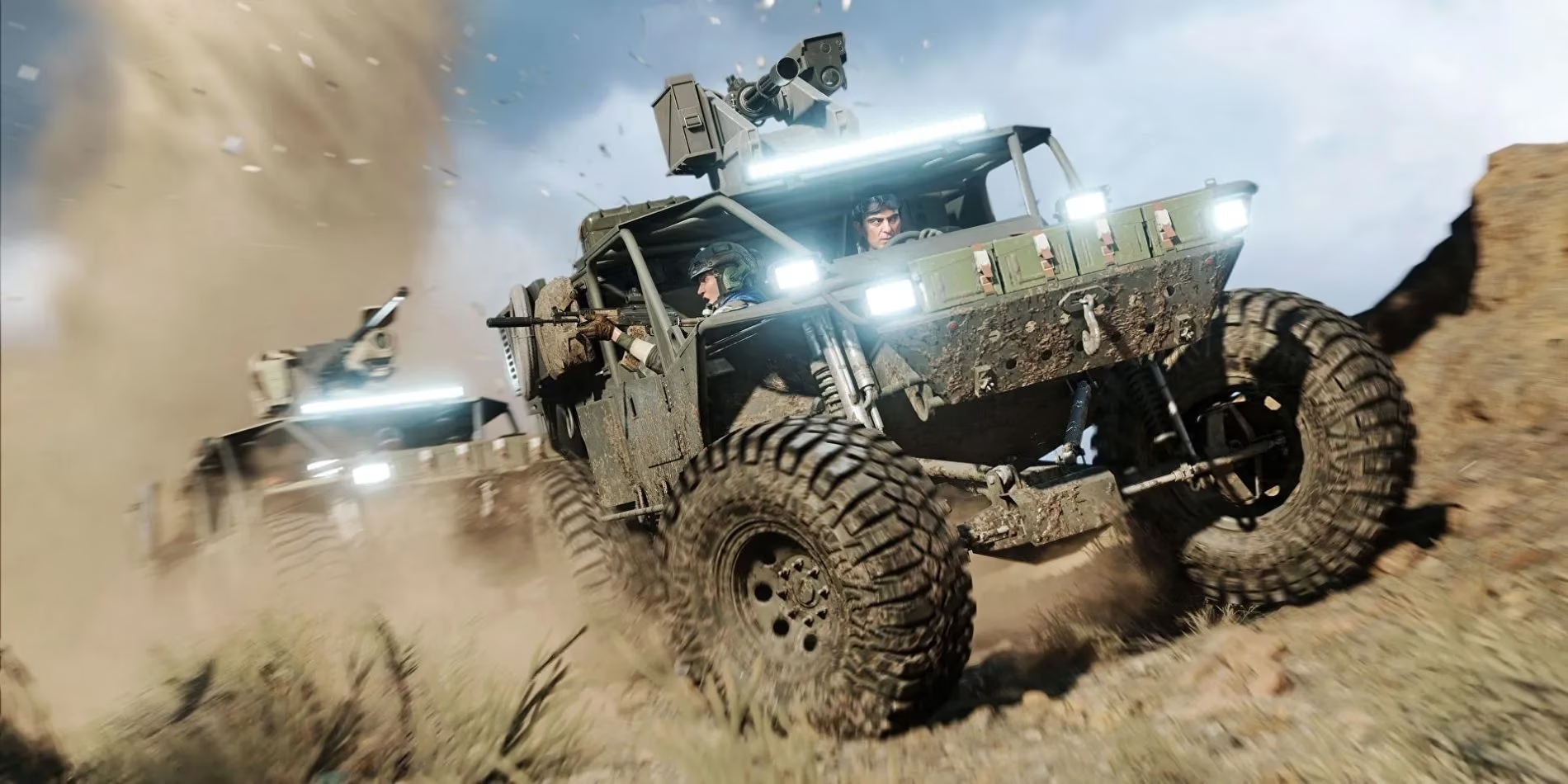
Imagine a player—let's call him "FPS Frank"—who boots up Battlefield 2042 in 2026, expecting smooth 128-player chaos. Instead, his screen stutters like a broken projector, and his bullets fly with the grace of a drunken pigeon. Low FPS is the villain of this story, and it's been kicking sand in players' faces since launch. The game is action-packed and fast-paced, so every frame matters. When the framerate dips, tracking enemies becomes a fool's errand, and gunfights turn into a comedy of errors. Quick reactions are the name of the game in first-person shooters, so a choppy experience puts players at a severe disadvantage. It's frustrating when a rig that runs other games perfectly fine suddenly chokes on Battlefield 2042. Many players—even those with high-end machines—have been left scratching their heads, wondering if their impressive hardware is secretly a potato. As of 2026, the game has received numerous patches, but the FPS gremlin still lurks for some. The good news? There are a few fixes that can turn that slideshow back into a shooter. Here are the recommended methods, ordered by their likelihood to raise FPS, served with a side of humor. 😅
Change In-Game Settings: The Low-Hanging Fruit
First things first: players should give their in-game settings a stern talking-to. The approach depends on how dire the situation is. If FPS is lower than a snake's belly, dropping the graphics preset down one or two levels is the quickest win. This lowers all settings at once and gives a decent bump in performance—no sweat. For those who just want to polish things up without sacrificing too much eye candy, lowering shadow quality, reflection quality, and anti-aliasing is a smart move. These effects are hardware-intensive relative to the visual results they provide, so they're basically eating frames for breakfast. After tweaking, players can jump into a Battlefield 2042 Portal game to see how their FPS has improved. It's a piece of cake, and it works. 🎮
Update Graphics Drivers: The Usual Suspect
Next up: graphics drivers. If players notice inconsistent framerates, outdated drivers are often the culprit. On Nvidia cards, open GeForce Experience and check for new drivers. If there are any, install them and restart the computer. AMD users should do the same with AMD Radeon Software. If the driver software is missing, players can visit their manufacturer's website to grab it. Outdated drivers are typically the most common reason for poor game performance—assuming the problem isn't Battlefield 2042's servers or game balance. In 2026, driver updates are still the low-hanging fruit of PC gaming, and skipping them is like forgetting to put on deodorant before a LAN party: everyone suffers. 🛠️
Disable Overlays: The Sneaky Saboteur
Last but not least, overlays can interact with the game in ways that make it act up. The usual suspect is the Discord overlay. To disable it, open Discord, click the settings cog in the bottom left, navigate to the Game Overlay tab, and untick "Enable in-game overlay." Then restart the game and see if the FPS problem vanishes. It's a small change that can have a big impact. Other overlays—like those from GPU software or chat apps—can also cause trouble, so players should consider disabling them one by one if the problem persists. Sometimes the quietest background app is the loudest troublemaker. 😈
Quick Reference Table
| Fix | Difficulty | Likely Impact | Notes |
|---|---|---|---|
| Lower graphics preset | Easy | High | Drop 1-2 levels for immediate gains |
| Reduce shadows/reflections/AA | Easy | Medium | Big performance hogs |
| Update GPU drivers | Easy | High | Check GeForce Experience or AMD Radeon Software |
| Disable Discord overlay | Easy | Medium | Untick "Enable in-game overlay" |
| Disable other overlays | Easy | Variable | Test one at a time |
Final Thoughts
Battlefield 2042 is available on Xbox Series X and S, PlayStation 4, PlayStation 5, Xbox One, and PC. In 2026, the game still delivers explosive action, but low FPS can turn a thrilling match into a frustrating mess. Players who follow these steps—adjusting settings, updating drivers, and disabling overlays—can often smooth out the experience. It's not rocket science, but it does require a little patience. After all, nobody wants to lose a gunfight because their computer decided to take a coffee break mid-firefight. So, give these fixes a shot, and may the frames be ever in your favor. 🚀
Comments